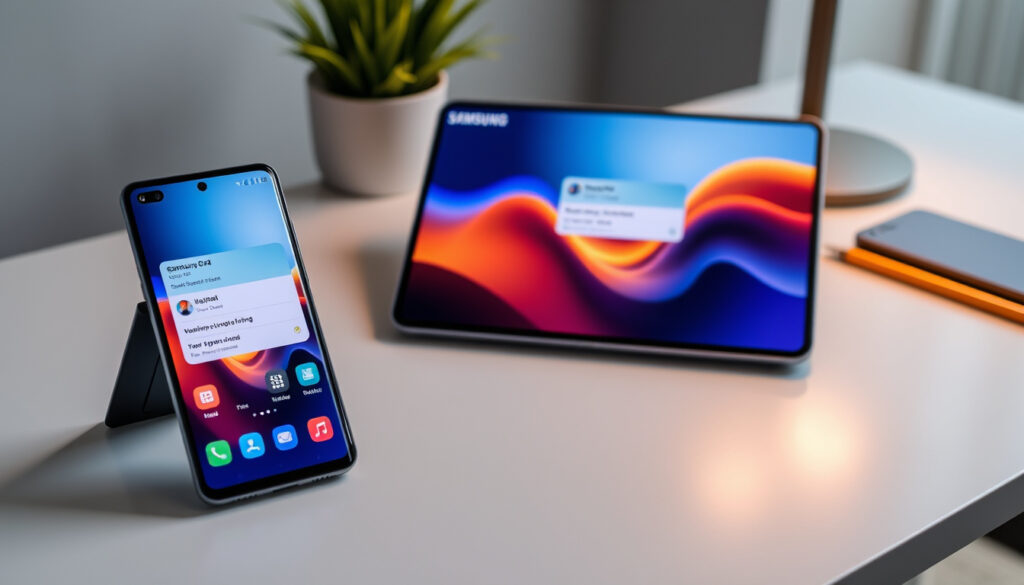
How to Screenshot on Samsung: Phones, Tablets, S24 Guide
Samsung Galaxy devices offer at least four distinct screenshot methods — button combinations, palm swipe gestures, Quick Settings, and the Assistant Menu accessibility tool. This guide covers every technique with exact settings paths for Galaxy S24, S23, S22, A-series phones, and tablets.
Standard method: Power + Volume Down · Alternative methods: 4 distinct ways · Official source: Samsung.com
Quick snapshot
- Button combo works on all Galaxy devices (Samsung Official Support)
- Screen flash confirms successful capture (Samsung Official Support)
- Screenshots save to Gallery app automatically (Samsung Official Support)
- Exact gesture availability varies by model
- Voice command support limited to S24 Ultra in testing
- S24 series introduced enhanced non-button methods
- Voice commands reportedly in testing for broader model support
Samsung’s official support documentation lists multiple screenshot methods available across Galaxy phones and tablets running One UI. The primary techniques include button combinations, gesture controls, and accessibility features.
| Feature | Details |
|---|---|
| Primary method | Power + Volume Down |
| Confirmation | Screen flash |
| Save location | Gallery app |
| Alternatives count | At least 4 |
| Accessibility option | Assistant Menu |
| Edge panel max shortcuts | 12 |
What is the easiest way to screenshot on a Samsung phone?
Press and hold the Power/Side button and the Volume Down button simultaneously, then release after a brief moment. The screen flashes to confirm the capture, and the screenshot saves automatically to your Gallery app. According to Samsung Official Support documentation, the buttons are typically located on the right side of the device, though placement can vary slightly between models.
Power and volume down buttons
The button combination works identically across the Galaxy S24, S23, S22, S20, and A-series phones including the A14 and A21s. The timing matters — hold both buttons until you see the screen flash, which typically takes about half a second. Release immediately after the flash to avoid triggering other actions like the power menu.
“Press and hold the Power key and the Volume down key at the same time.”
— Samsung Official Support
Screen flash confirmation
A white border around the screen edge signals a successful capture. Samsung’s official documentation describes this as the primary confirmation method. You’ll also see a thumbnail appear briefly in the lower-left corner, which you can tap to access editing options immediately.
If the flash doesn’t appear, check that the buttons are pressing evenly. On curved-edge models, the volume button sits lower on the left edge — position your fingers accordingly.
How do you screenshot on a Samsung without the button?
Samsung Galaxy devices support four non-button screenshot methods: the palm swipe gesture, the Quick Settings panel, the Edge panel, and the Assistant Menu accessibility tool. Samsung Official Support confirms all four are available across Galaxy phones and tablets running One UI.
Palm swipe gesture
Swipe the edge of your hand across the screen to capture. To enable this feature, open Settings > Advanced features > Motions and Gestures > Palm swipe to capture. Samsung’s official guide specifies you can also access this through the Quick panel by swiping down from the top right corner with two fingers, then tapping Settings > Advanced features > Palm swipe to capture. Once enabled, you simply lay the side of your hand on one edge of the screen and swipe to the opposite edge.
“There are a variety of ways you can take a screenshot on your Galaxy phone or tablet, such as using a palm swipe gesture or an S Pen.”
— Samsung Official Support
Quick settings panel
Swipe down from the top of the screen to open the Quick Settings panel, then tap the screenshot icon. If you don’t see it, tap the pencil icon to enter edit mode, select the full options list, and drag “Take screenshot” to your active buttons. Samsung tutorial videos demonstrate this customization process step by step.
Edge panel
Open the Edge panel by swiping left on the panel handle located on the right side of the screen. Navigate to the Tasks panel and tap “Take screenshot.” To add this shortcut, open Edge panel settings, select the Tasks panel, tap Edit, and drag “Take screenshot” from the available options. Samsung devices allow a maximum of twelve shortcuts in the Edge panel, so choose your most-used tools.
Assistant Menu (Accessibility)
The Assistant Menu creates a floating button that can be positioned anywhere on screen for one-tap screenshot access. Enable it by going to Settings > Accessibility > Interactions > Assistant Menu, then toggle it on. Once enabled, the floating button appears and can be dragged to any screen edge. Tap the button, then select Screenshot from the menu options. YouTube tutorials confirm this feature works across various Samsung models and Android versions, making it particularly useful for users with mobility limitations or those using cases that obscure physical buttons.
What are the three ways to take a screenshot?
The four primary screenshot methods on Samsung Galaxy devices are the buttons combination, the gesture method, the Quick panel method, and the Assistant Menu accessibility option. Samsung Official Support documents all methods as standard features across Galaxy phones and tablets. Each method works for all Galaxy devices, though the specific settings paths may differ slightly between One UI versions.
Buttons method
Power + Volume Down. Works universally on every Galaxy phone and tablet. This is the fastest method once you’ve practiced the timing — most users report muscle memory developing within a few days of regular use.
Gesture method
Palm swipe to capture. Requires enabling in Settings but becomes faster than buttons once you’re used to the motion. Best for one-handed operation when your other hand is occupied.
Quick panel method
Pull-down screenshot button. Adds a persistent screenshot trigger to your notification shade. Pocket-lint notes this method is particularly useful when the buttons are difficult to press simultaneously or when using a case that makes button access awkward.
Assistant Menu method
Accessibility floating button. Provides a persistent on-screen control that works regardless of physical button condition. The menu can be customized to include screenshot alongside other frequently used actions.
The button method remains fastest for most users, but the Quick panel option is worth adding if you frequently use screen capture in apps where one-handed operation is important.
How to screenshot on Samsung tablet?
Samsung tablets use the same Power + Volume Down button combination as phones. The process is identical: press both buttons simultaneously, release after the screen flash, and find your capture in the Gallery app under Screenshots. Samsung Canada Support confirms tablets support button combinations, palm swipe gestures, and S Pen commands where applicable.
Button combo on tablets
The larger body of tablets can make two-handed button pressing awkward. Samsung’s official tablet documentation acknowledges this and recommends enabling the Quick Settings screenshot button for easier one-handed capture. On Galaxy tablets with S Pen, you can also use the stylus to access the screenshot command directly.
Differences from phones
Tablets lack the Edge panel on most models, relying instead on the Quick Settings approach. Scroll capture — Samsung’s feature for capturing content beyond the visible screen — works on both phones and tablets, appearing as an option when additional screen content exists below the current view.
The implication for tablet users is that Quick Settings customization becomes even more valuable given the physical challenges of reaching buttons on larger devices.
How to take screenshot on Samsung S24, S23, S22?
All Galaxy S-series devices from the S20 onward share consistent screenshot methods. The S24, S23, and S22 series all respond to Power + Volume Down, palm swipe gestures, and the screenshot toolbar. According to Samsung tutorial content, the S24 series introduced refinements to the post-capture toolbar but the core capture methods remain unchanged.
S24 method
The S24 series supports all standard methods plus enhanced toolbar options including the ability to disable “Show toolbar after capturing” and enable “Hide status and navigation bar” in the screenshot. S24 Ultra additionally supports voice assistant commands for hands-free capture. Samsung Galaxy S24 devices allow users to save the original screenshot and change the format between JPG or PNG depending on Settings preferences.
S23 and S22 variations
The S23 and S22 use the same button placement and gesture methods as the S24. Minor differences exist in the toolbar options menu organization, but the core screenshot functionality is identical across these three generations.
S20 and A series
Galaxy S20 devices and budget A-series phones including the A14 and A21s support all three primary screenshot methods. The button placement differs on some A-series models — the power button sits higher on the right edge compared to S-series devices.
The catch for A-series owners is that button positioning varies enough to require conscious finger placement until muscle memory develops.
How to edit, share, and use your screenshots
After capturing, Samsung displays a toolbar with editing and sharing options. Pocket-lint notes that the screenshot toolbar appears by default on Galaxy S-series devices and offers scroll capture, drawing tools, cropping, and sharing options. The toolbar default state is enabled in Settings > Advanced features > Screenshots and screen recorder.
Screenshot toolbar options
The toolbar includes scroll capture — tap this button when it appears to extend your screenshot beyond the visible screen, useful for capturing long webpages or conversations. You can also draw or annotate directly on the capture, crop to a specific region, or share immediately to any app.
“Scroll capture to include parts of the display you can see, for example on a long webpage (it’s really useful).”
— Pocket-lint Tech Publication
Saving and format options
Samsung Galaxy S24 devices allow saving the original screenshot and changing the format between JPG or PNG. The default format depends on your Settings preferences. Screenshots save to Gallery > Albums > Screenshots by default.
What this means for users who need precise image quality is that PNG format preserves more detail for screenshots containing text or UI elements, while JPG produces smaller files suitable for sharing.
Related reading: How Long to Soft Boil an Egg: Times for Perfect Yolks · How Long to Soft Boil an Egg for Runny or Jammy Yolks
Samsung Galaxy phones and tablets like the S24 support palm swipe alongside buttons, with methods detailed in this step-by-step guide for all devices.
Frequently asked questions
How do I take a screenshot easily?
The easiest method is pressing Power + Volume Down simultaneously. The screen flashes to confirm, and the capture saves automatically. Once you practice the timing, this becomes second nature.
What is the quickest way to screenshot?
Power + Volume Down is the fastest method for most users. After a few days of practice, the timing becomes automatic. Add the Quick Settings button if you find two-handed operation awkward.
How to find the screenshot button on Samsung?
There is no dedicated screenshot button. The capture triggers are: Power + Volume Down buttons, the palm swipe gesture, the Quick Settings panel icon, the Edge panel Tasks shortcut, or the Assistant Menu floating button. Enable these in Settings > Advanced features or Settings > Accessibility.
Is there another way to take a screenshot on Android?
Yes. Samsung Galaxy devices offer at least four alternatives to the button method: palm swipe gesture (enable in Motions and Gestures), Quick Settings screenshot button (customize in the notification panel), Edge panel Tasks shortcut (available on supported models), and the Assistant Menu accessibility feature.
How to screenshot on Samsung S20?
The S20 uses the same Power + Volume Down button combination as newer models. Palm swipe gesture and Quick Settings methods are also supported on the S20 series.
How to take screenshot on Samsung phone without volume button?
Use the palm swipe gesture (enable in Settings > Advanced features > Motions and Gestures > Palm swipe to capture), add the Take screenshot button to Quick Settings, use the Edge panel Tasks shortcut, or enable the Assistant Menu floating button from Settings > Accessibility > Interactions > Assistant Menu for a persistent on-screen control.
How to screenshot on Samsung A14?
The A14 supports all standard Galaxy screenshot methods. Power + Volume Down works identically to S-series devices. Palm swipe can be enabled in Settings > Advanced features > Motions and Gestures. The Quick Settings screenshot button provides an alternative when physical buttons are awkward to press together.
More related posts
 Sarah Jessica Parker: Irish Home, Kids, JFK Jr. Dating
 Lauren Phillips Biography: Career, Net Worth & Personal Life
 Judge Frank Caprio Dies at 88: Last Words and Legacy
 Floella Benjamin: Play School Presenter to Baroness
 Danni Menzies: Age, Accident, Egg Freezing, and Life Now
 James Beck: Life and Death of Dad’s Army Private Walker
 Joe Burrow: Contract, Net Worth, Injury & Personal Life
 Lucy Beaumont: Split from Jon Richardson, Career & Tour