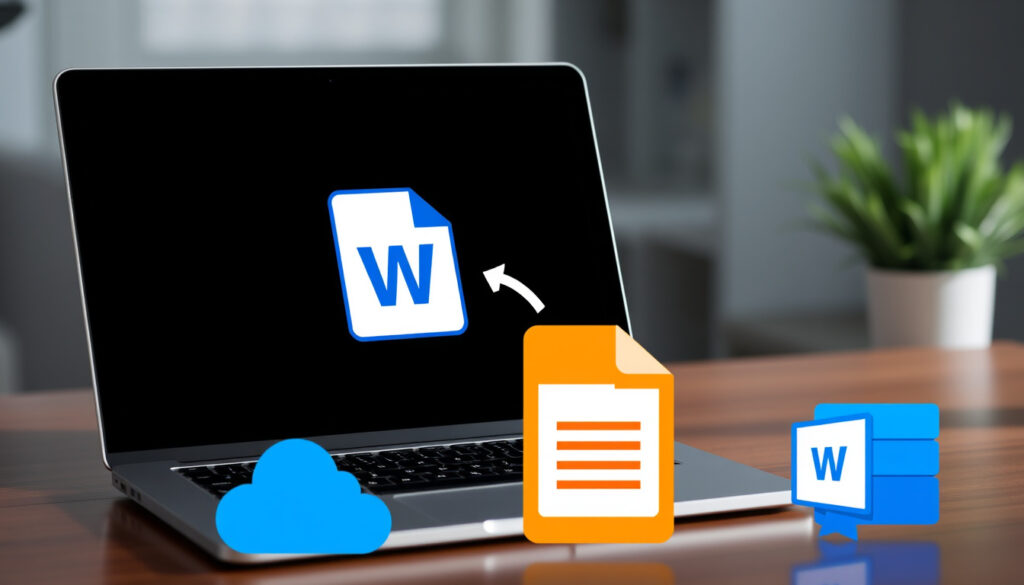
Free PDF to Word Converter: Best Online & Offline Tools
Anyone who’s tried to edit a PDF knows the frustration of a locked document. Whether it’s a scanned contract, a downloaded report, or a digital form, getting that text into a Word file often feels harder than it should be. This guide cuts through the noise, comparing the top free PDF to Word converters on accuracy, privacy, and offline support — so you can pick the right tool without trial and error.
Free PDF to Word converters available online: over 50 ·
Accuracy claimed by leading tools: up to 99% ·
Monthly conversions processed by top converters: millions ·
File size limit on free tiers: typically 10 MB ·
Tools requiring registration: less than 30%
Quick snapshot
- No installation required
- Works on any browser
- File size limits often apply
- Work without internet
- Better for large or sensitive files
- May require software download
- Convert PDFs on the go
- Available for iOS and Android
- Often include OCR
- No file size limits
- Batch conversion
- Additional features like editing
Here are the essential details about the leading free PDF to Word converters on the market.
| Most popular free converter | Adobe Acrobat online (Adobe Acrobat Online) |
| Claimed accuracy rate | Up to 99% (I Love PDF) |
| Maximum free file size | Typically 10 MB |
| Number of formats supported | PDF, DOC, DOCX, and more |
| Offline option available | Yes, via LibreOffice |
How can I convert a PDF to Word for free?
Uploading a PDF to an online converter
The simplest route: upload your file to a browser-based tool. Adobe Acrobat (official PDF software maker) offers a free online converter that turns PDFs into editable DOCX files. Drag and drop, convert, download — no sign-up needed for the first use. Smallpdf (popular conversion platform) follows the same pattern, stating it requires no signup and adds no watermarks. Most free tools cap file sizes around 10 MB, but the process takes seconds.
Using desktop software for offline conversion
If you prefer to work without an internet connection, desktop suites like LibreOffice can open and export PDFs as Word documents. LibreOffice (free open-source office suite) handles basic PDF to DOCX conversion natively. For scanned PDFs, offline tools often lack built-in OCR — Smallpdf (conversion platform) notes that OCR is a Pro feature.
Converting via mobile app
On the go, dedicated apps like PDFgear offer both online and offline conversion. PDFgear (PDF utility developer) says its app handles single PDFs up to 100 MB for free. Google Docs also works as a workaround: upload a PDF to Google Drive, open it with Docs, and download as Word — but it requires internet and a free account.
Free online converters are fast, but each upload sends your file to a third-party server. For sensitive documents, offline tools or local apps give you control over privacy.
The implication: The fastest free method depends on whether you have internet access and whether your PDF is text-based or scanned. Online tools win on speed; offline tools win on data security.
What is the best free PDF to Word converter online?
Adobe Acrobat online converter
Adobe’s tool is the gold standard for fidelity because it comes from the company that created the PDF format. Adobe Acrobat (PDF format creator) converts PDFs into DOCX while preserving layout, fonts, and images well. The free tier lets you convert a few files per day, though frequent use may trigger a sign-in prompt.
SmallPDF converter
SmallPDF markets itself as a no-fuss option: Smallpdf (online document platform) promises free conversion without registration and no watermarks. Its interface is beginner-friendly. However, OCR (for scanned PDFs) requires a paid Pro account.
Nitro PDF converter
Nitro (document productivity software) offers a browser-based converter that it advertises as 100% free and requiring no registration. It handles text PDFs well but offers no offline mode.
PDFgear converter
PDFgear (PDF software developer) stands out with both online and offline versions. Its online converter is free for single files up to 100 MB, and the offline app supports batch conversion for larger workflows.
For the average user who needs a quick text-based PDF turned into a Word doc, almost any tool works. The real difference shows with layout-heavy files and scanned documents — where Adobe and Smallpdf (with OCR) lead.
The trade-off: Adobe gives the most reliable output for complex layouts; PDFgear offers the highest free file-size limit; Smallpdf is the simplest for beginners. No single tool excels at everything.
Is there a free offline PDF to Word converter?
Desktop software options (LibreOffice, WPS Office)
LibreOffice is the most accessible free offline converter. LibreOffice (free open-source office suite) can open a PDF in its Draw application and export it as DOCX. The process works well for simple document layouts but may misalign complex tables and graphics. WPS Office offers a similar offline workflow, though the free tier includes ads.
Advantages of offline conversion
Offline tools keep your files on your own machine — no upload, no server storage, no privacy risk. They also handle larger files without size limits imposed by online services. For batch conversions, PDFgear’s offline app supports multiple files at once, as stated on its site.
Limitations of offline tools
Most free offline converters lack OCR, so scanned PDFs come out as images, not editable text. Formatting fidelity is generally lower than online tools from companies like Adobe. A DeepPDF review (third-party comparison site) notes that offline options like FreeConvert work well for complex layouts, but FreeConvert is actually a browser-based tool, not a true offline app — a common confusion.
The pattern: True free offline converters excel at privacy and batch work but fall short on OCR and formatting precision. For scanned PDFs, you’ll need an online tool or a paid desktop suite.
Can I convert PDF to Word without signing up?
List of converters with no registration
Several major tools let you convert without creating an account. Adobe Acrobat (PDF format creator) allows free conversions without sign-up for initial sessions. Smallpdf (online document platform) explicitly states no signup is required. Nitro (document productivity software) also requires no registration. Google Docs requires a Google account, but that account is free and one-time.
Privacy benefits of no-sign-up tools
When you don’t sign up, the service has less data to link to you. Files are typically deleted after conversion, though policies vary. Smallpdf (document platform) claims files are automatically removed from its servers after a set period.
Potential drawbacks
No-sign-up tools often have stricter limits: smaller file sizes, fewer conversions per day, and no history or cloud storage for your converted documents. If you convert regularly, creating a free account (where offered) unlocks extra features like larger files and faster processing.
What this means: For one-off conversions, skip the sign-up. For regular use, a free account is still low-commitment and gives you better limits.
How accurate is the PDF to Word conversion?
Factors affecting accuracy
Conversion quality depends on the original PDF’s structure. Text-based PDFs (created from word processors) convert nearly perfectly. Scanned PDFs introduce errors because OCR technology misreads fonts, ligatures, and low-resolution images. Complex layouts with multiple columns, tables, or embedded fonts also degrade accuracy.
Comparison of accuracy across major tools
Adobe Acrobat (PDF format creator) typically maintains highest fidelity due to direct access to the PDF specification. Smallpdf (conversion platform) claims “almost 100% accurate” on its site for standard files. A DeepPDF review (comparison blog) names Sejda as the top free converter for OCR quality, while FreeConvert excels with complex layouts.
How to improve conversion results
Start with the highest-quality PDF you can get — avoid downscaled images. If the source is a scan, use a tool with robust OCR (like Adobe or Sejda). After conversion, always proofread the output, especially tables, numbers, and headers.
No free converter guarantees 100% accuracy for every PDF. Users who regularly handle scanned documents should prioritise OCR-capable tools like Adobe or Sejda, even if it means signing up.
The pattern: Accuracy is high for digital PDFs and drops sharply for scans. Invest a minute in choosing the right tool for your document type.
The table below compares how these tools stack up against each other on the key criteria that matter most to users.
| Tool | Free offline mode | No sign-up required | OCR for scanned PDFs | Max free file size |
|---|---|---|---|---|
| Adobe Acrobat Online | No | Yes (first use) | Yes (free limited) | ~10 MB |
| Smallpdf | No | Yes | Pro only | ~10 MB |
| Nitro PDF | No | Yes | No | Unspecified |
| PDFgear | Yes | Yes | Yes (app) | 100 MB |
| LibreOffice | Yes | N/A (software) | No | Unlimited |
Five tools, one takeaway: No single converter covers all needs. PDFgear and LibreOffice are best for offline work; Adobe and Smallpdf lead in online convenience and accuracy.
Upsides
- Free online converters are extremely fast and easy.
- No registration required for most one-time conversions.
- Offline tools protect sensitive files from server upload.
- Mobile apps provide on-the-go conversion.
Downsides
- Free tiers cap file sizes at 10–100 MB.
- OCR for scanned PDFs often requires a paid upgrade.
- Formatting can break on complex layouts.
- True offline converters lack OCR entirely.
Step-by-Step Conversion Guide
Method 1: Using an online converter (Adobe, Smallpdf, Nitro)
- Open the tool’s website in your browser.
- Drag and drop your PDF file onto the upload area (or click to browse).
- Wait for the automatic conversion — typically 10–30 seconds for a 10 MB file.
- Click “Download” to save the resulting Word document.
Method 2: Using desktop software (LibreOffice)
- Install LibreOffice from the official site.
- Open LibreOffice Draw and select File → Open to import your PDF.
- Edit any misaligned text if needed.
- Export as DOCX via File → Export As → Microsoft Word.
Method 3: Using Google Docs (online, needs account)
- Upload the PDF to Google Drive.
- Right-click the file and select “Open with Google Docs”.
- Google Docs will convert the PDF into an editable document.
- Go to File → Download → Microsoft Word (.docx).
For all methods: check the output for formatting errors, especially tables, footnotes, and page numbers.
Confirmed Facts and What’s Unclear
Confirmed facts
- Adobe Acrobat online is owned by Adobe Systems (Adobe Acrobat Online).
- SmallPDF offers free conversion without watermarks (Smallpdf).
- LibreOffice is a free open-source office suite (LibreOffice).
- PDFgear offers both online and offline conversion (PDFgear).
What’s unclear
- Which converter has the highest accuracy across all document types (no independent benchmarks).
- Whether free converters retain all formatting faithfully — especially tables and columns.
- Exact number of active users per tool — claims are self-reported.
- Whether online converters permanently delete uploaded files after conversion — privacy policies vary.
“We provide a quick and easy way to convert PDFs to Word files — no signup needed.”
Adobe Acrobat (official PDF format creator)
“Free PDF to Word converter online. No sign-ups, no watermarks, no limits.”
Smallpdf (online document platform)
For the average user who needs a simple text PDF turned into a Word document, free online converters like Adobe and Smallpdf deliver fast results with no commitment. But if you handle scanned documents daily, or if privacy is a concern, the choice is clear: invest in a tool with robust OCR or go offline with LibreOffice — or face compromised formatting and data exposure.
Related reading: Can I Run It: Free PC Game Compatibility Checker Guide
For readers who prefer a local comparison, this guide to top offline and online tools highlights similar offline and online options tested for accuracy.
Frequently asked questions
Can I convert a PDF to Word on a Mac?
Yes. Most online converters work in any browser on macOS. For offline use, LibreOffice runs natively on Mac. Adobe also provides a web-based tool accessible from Safari.
What is the best PDF to Word converter for large files?
PDFgear supports free conversion of files up to 100 MB. For larger files, offline tools like LibreOffice have no built-in limit, but system memory may constrain performance.
Do PDF to Word converters retain hyperlinks?
Many converters, including Adobe and Smallpdf, preserve clickable links in the output DOCX. Check the tool’s feature list — some free tiers may strip them.
Is it safe to upload sensitive PDFs to online converters?
Risks vary. Smallpdf and Adobe state that uploaded files are automatically deleted after a set period. For maximum safety, use offline converters like LibreOffice.
How long does a PDF to Word conversion take?
Most online tools process a 10 MB file in under 30 seconds. Offline conversion via LibreOffice may take slightly longer depending on file complexity.
Can I convert multiple PDFs to Word at once?
Batch conversion is a premium feature in most online tools. PDFgear’s offline app supports batch conversion for free. LibreOffice can handle one file at a time manually.
What is the difference between PDF to DOC and PDF to DOCX?
DOC is the older Microsoft Word format (pre-2007), while DOCX is the modern XML-based format. DOCX is smaller, more compatible, and recommended. Most converters now output DOCX.
Are there any limits on the number of free conversions per day?
Adobe allows a few free conversions daily; Smallpdf and Nitro don’t impose hard limits. Frequent users may be prompted to sign in or wait for a cooldown window.
These FAQs address the most common concerns about free PDF to Word conversion, from file size limits to privacy and compatibility.
More related posts
 Hello Kitty True Story: Facts, Age, and Myths in 2026
 Casey Affleck: Oscar, Allegations, and Hollywood Reckoning
 Tomasz Schafernaker: BBC Weatherman’s Life, Art & Career
 Prisoner Cell Block H – Cast, Episodes, Where to Watch
 Julian Cash: Father, Net Worth, Doubles Rankings & Wimbledon Win
 Oliver Savell: The Teen Actor Behind Alan Carr in Changing Ends
 Leo DiCaprio: Age, Height, Net Worth & Career Facts